
The function, 'Show Previous Sales', provides an overview of all sales and returns arranged by time of transaction.
To display previous sales, select the menu in the upper left corner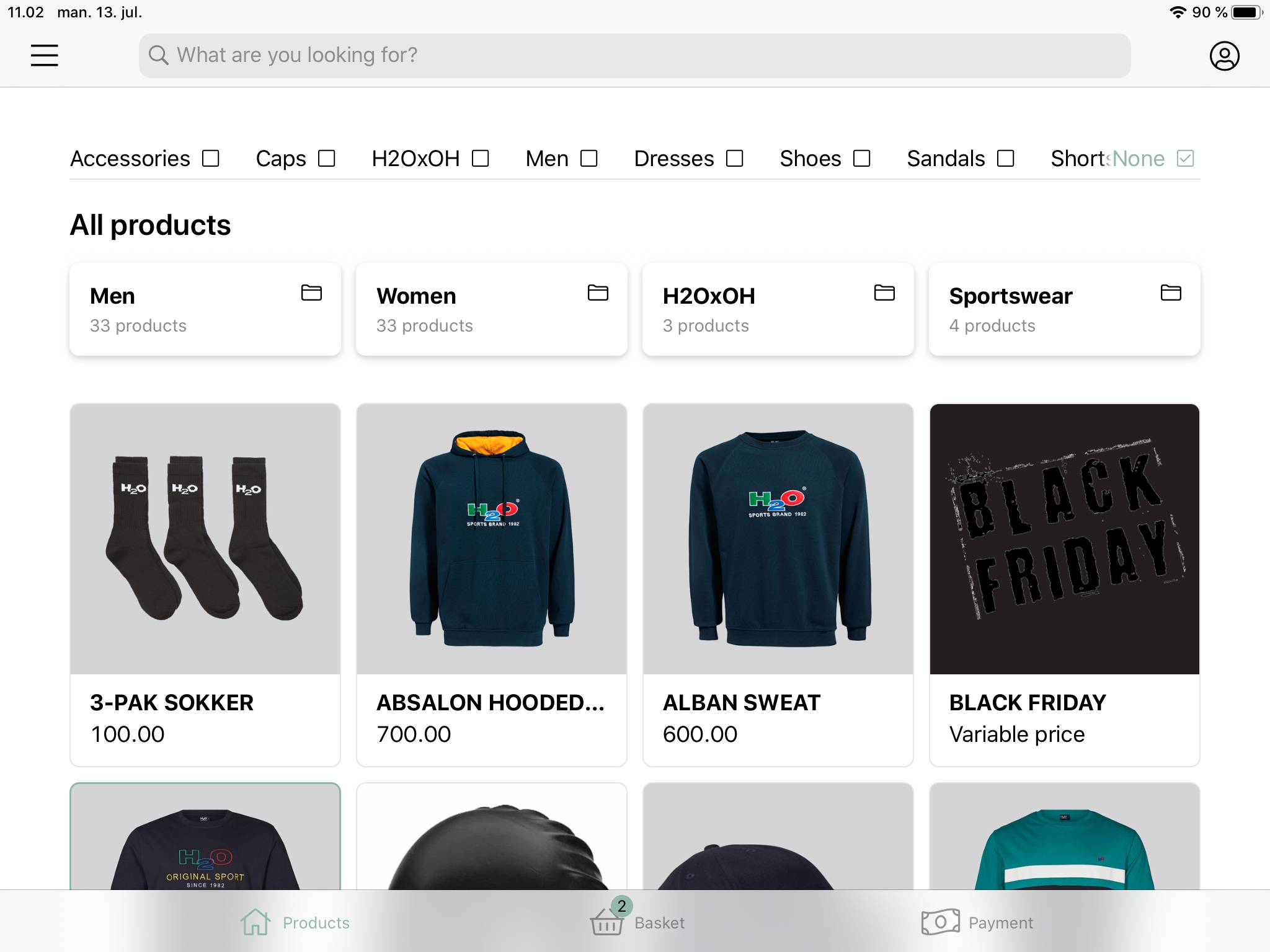
Select 'Sales' and 'Show Previous Sales'
Here you'll find a total overview of all sales and returns previously made. The list is organized by date and time. It will also be possible to see which store associate handled the transaction and the total amount of the transaction.
Previous sales which appear grey are non-returnable sales such as gift cards and returns.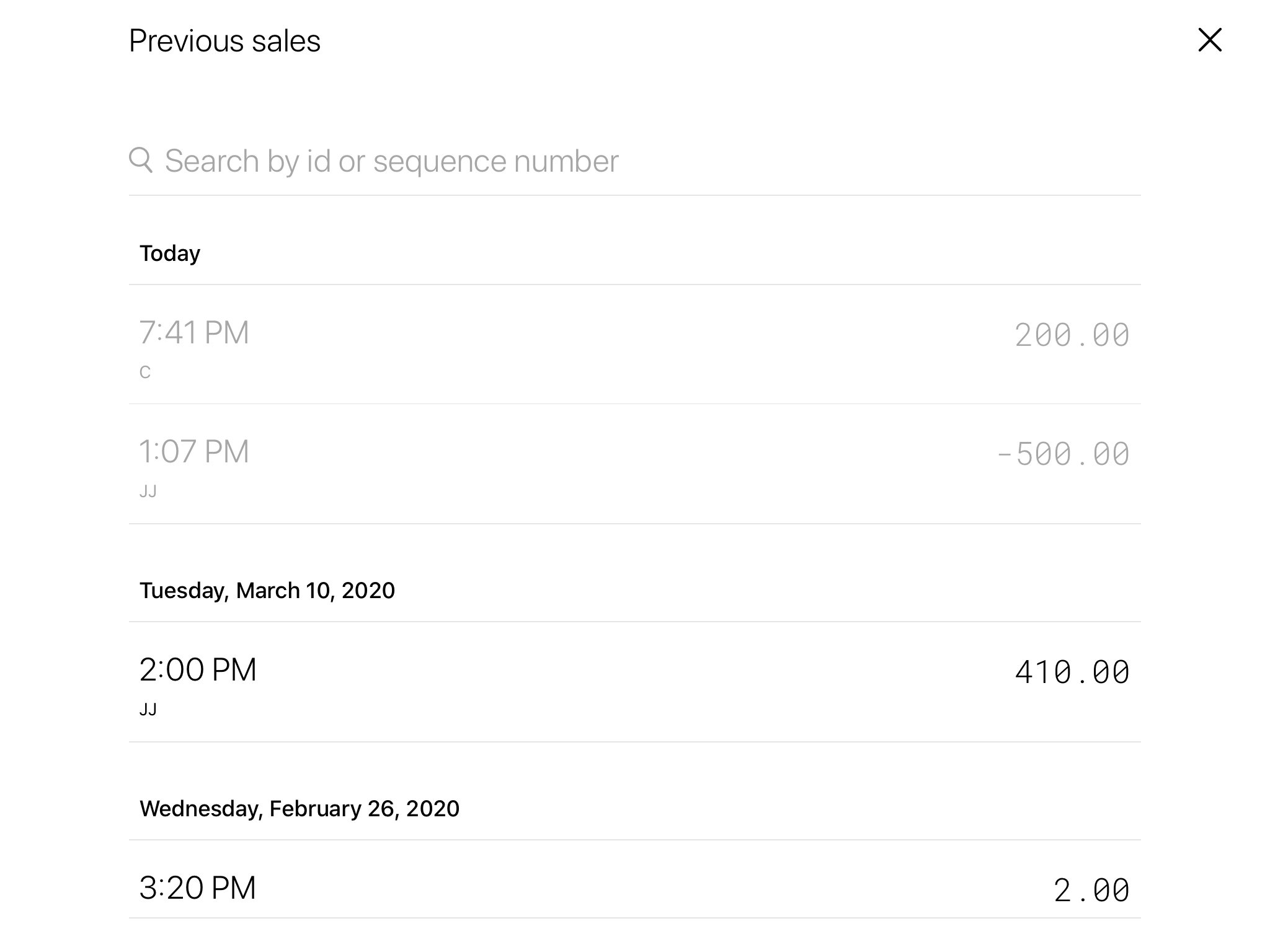
It is possible to search for a specific transaction by entering the ID or sequence number at the top of the page. This number is found as 'OrderID' on the receipt.
When taping on a sale, the following features appear: Return, Receipt, Add to Basket and Details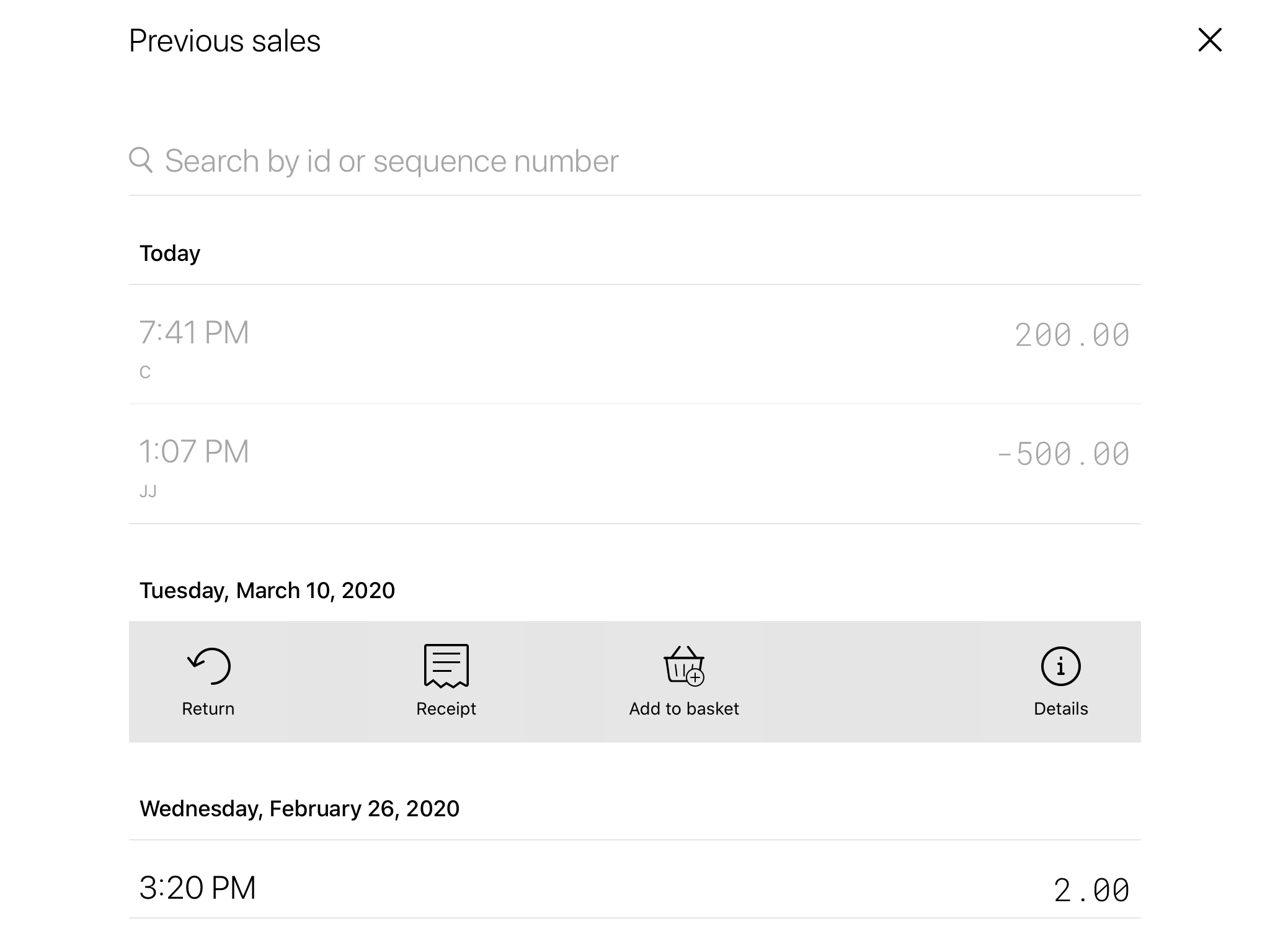
Return
Returns can be done both manually and by scanning a barcode.
See 'Return' for a guide on how to return a product.
Receipt
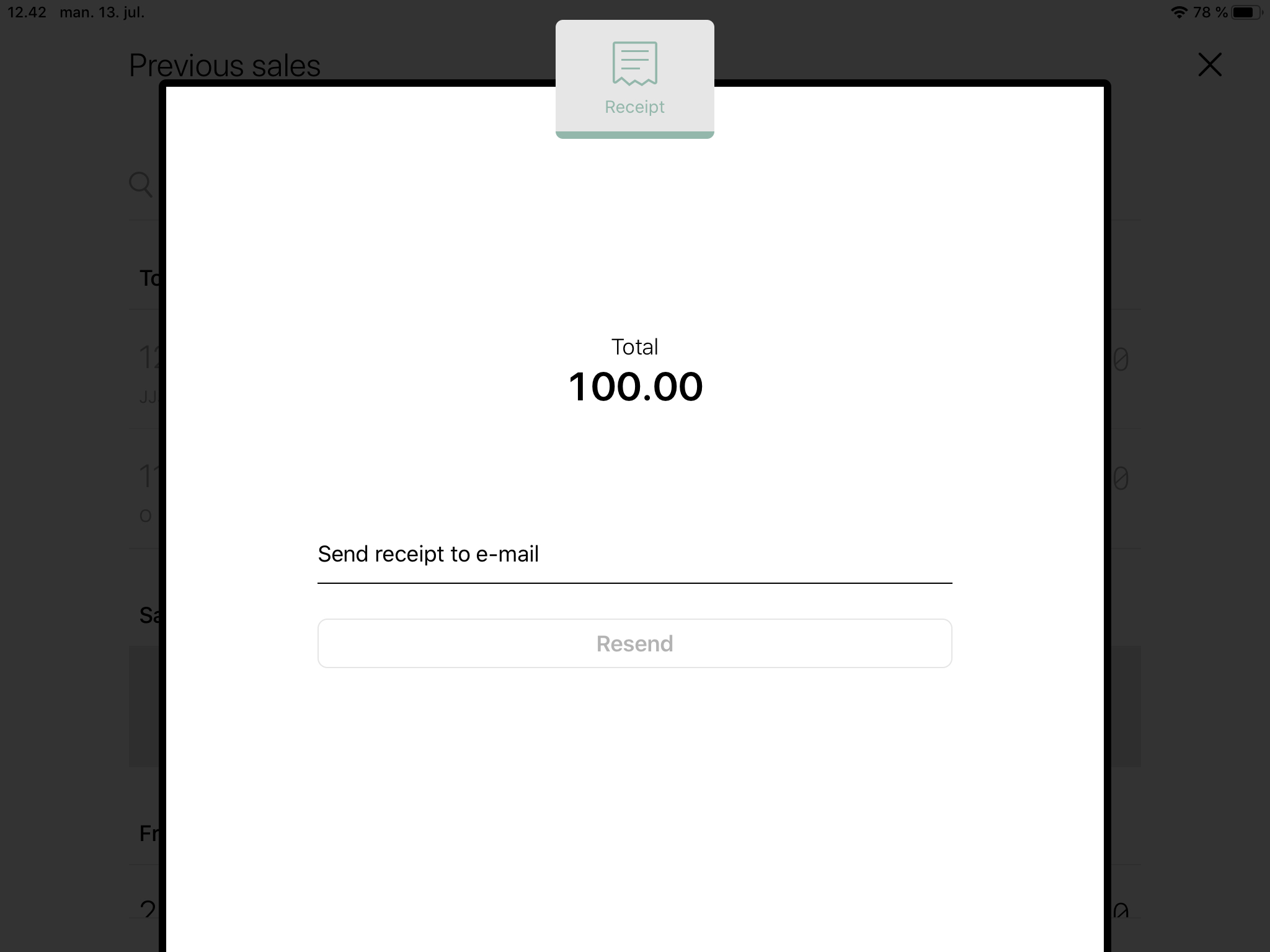
This feature allows the store associate to reprint or resend a receipt.
- Choose the transaction, from which you wish to reprint or resend a receipt.
- Choose ‘Receipt’.
- If you want to reprint the receipt, choose ‘Reprint’.
NB! In order to reprint the receipt, a printer has to be connected. See ‘Printers’ for a guide on how to set up printers
- If you want to resend a receipt to the customer, enter the email of the customer and choose ‘Resend’.
Add to basket
By taping ‘Add to Basket’, the content of the specific sale will be added directly to the basket.
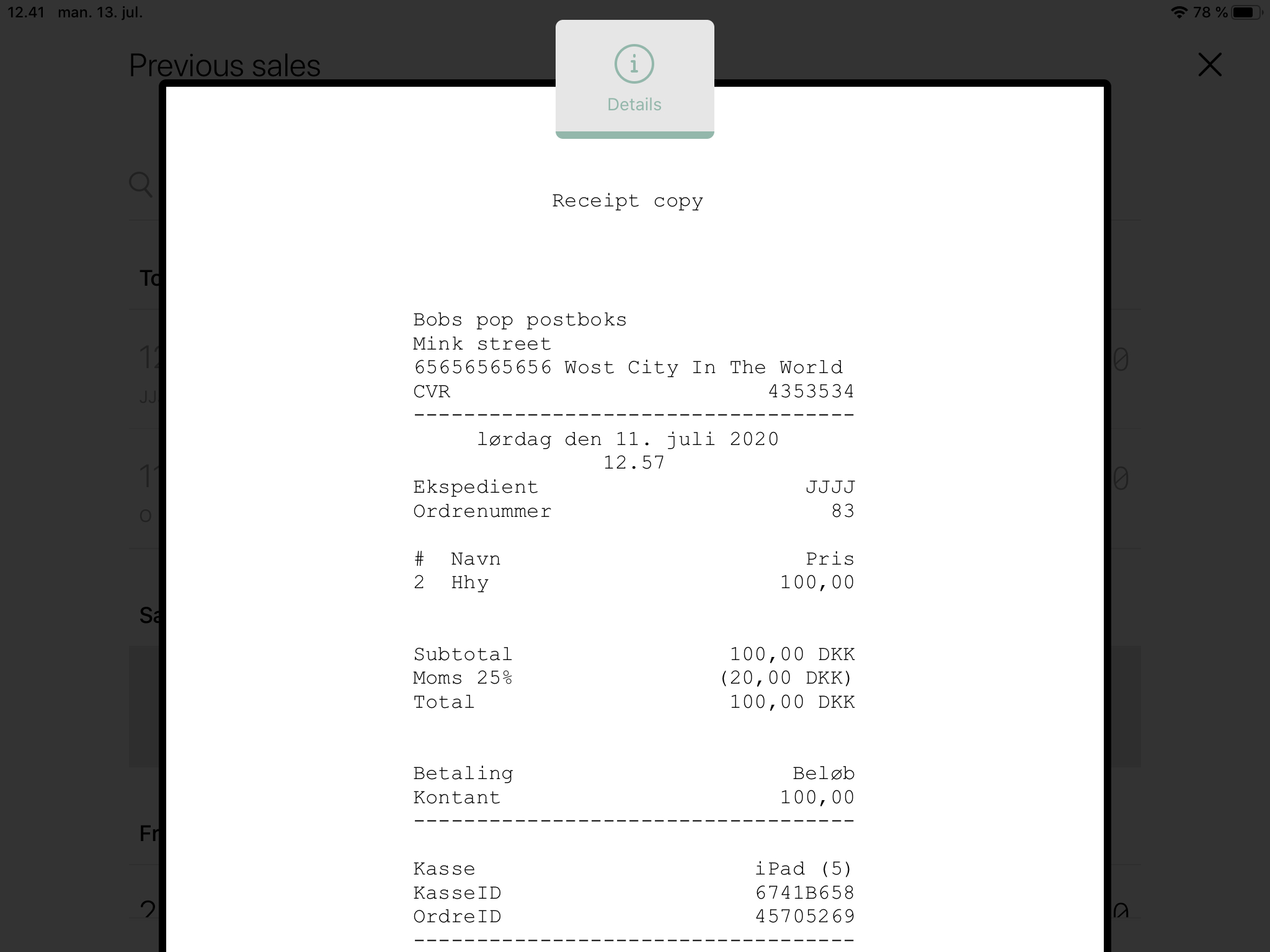
Details
Here, the store associate can get further information about individual transactions. This concerns the exact time of the transaction, the content of the transaction and the total amount.
- Choose the transaction you wish to retrieve extra information and press ‘Details’.
Comments
0 comments
Please sign in to leave a comment.